
Instructions
Setting up forms
From an empty form to the first inquiry in your inbox in five steps.
Step 1
Create a form
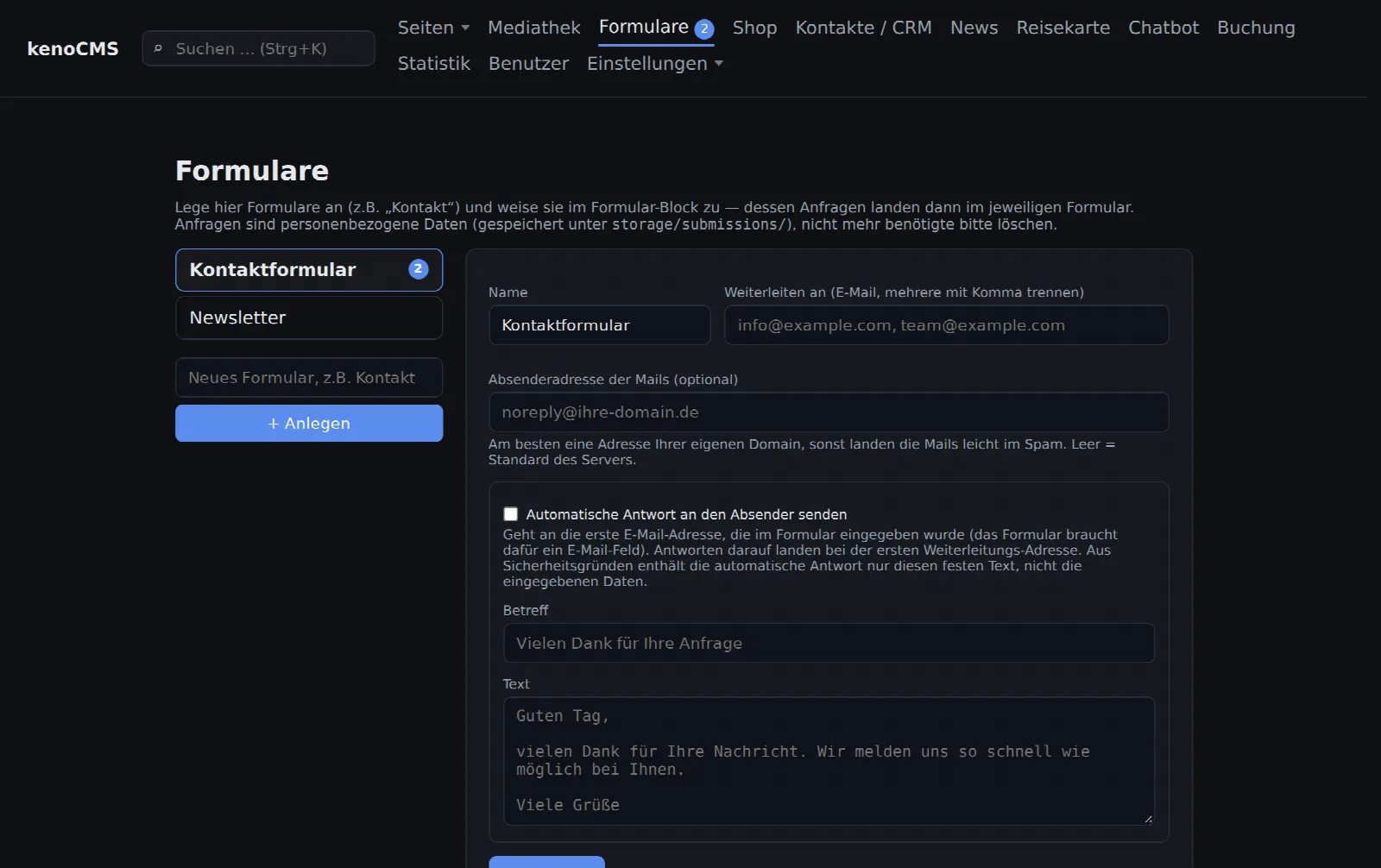
A form in kenoCMS works like an inbox: all inquiries from a form block end up there. Open Forms in the menu above, enter a name on the left, such as "Contact" or "Quote Request", and click + Create.
Create different forms for different purposes. This allows you to view contact inquiries and job applications separately.
Step 2
Redirection and automatic reply
- Forward to: Every inquiry is also sent to this address by email. Separate multiple addresses with a comma.
- Sender address: Ideally an address from your own domain, e.g. noreply@your-domain.com. This prevents emails from ending up in spam.
- Automatic reply: Check the box, enter a subject and text. The reply is sent to the email address entered by the visitor. If they reply to it, it goes to your first forwarding address.
Finally, click Save. For security reasons, the automatic reply only contains your fixed text, not the visitor's entries.
Step 3
Bring the form to the page
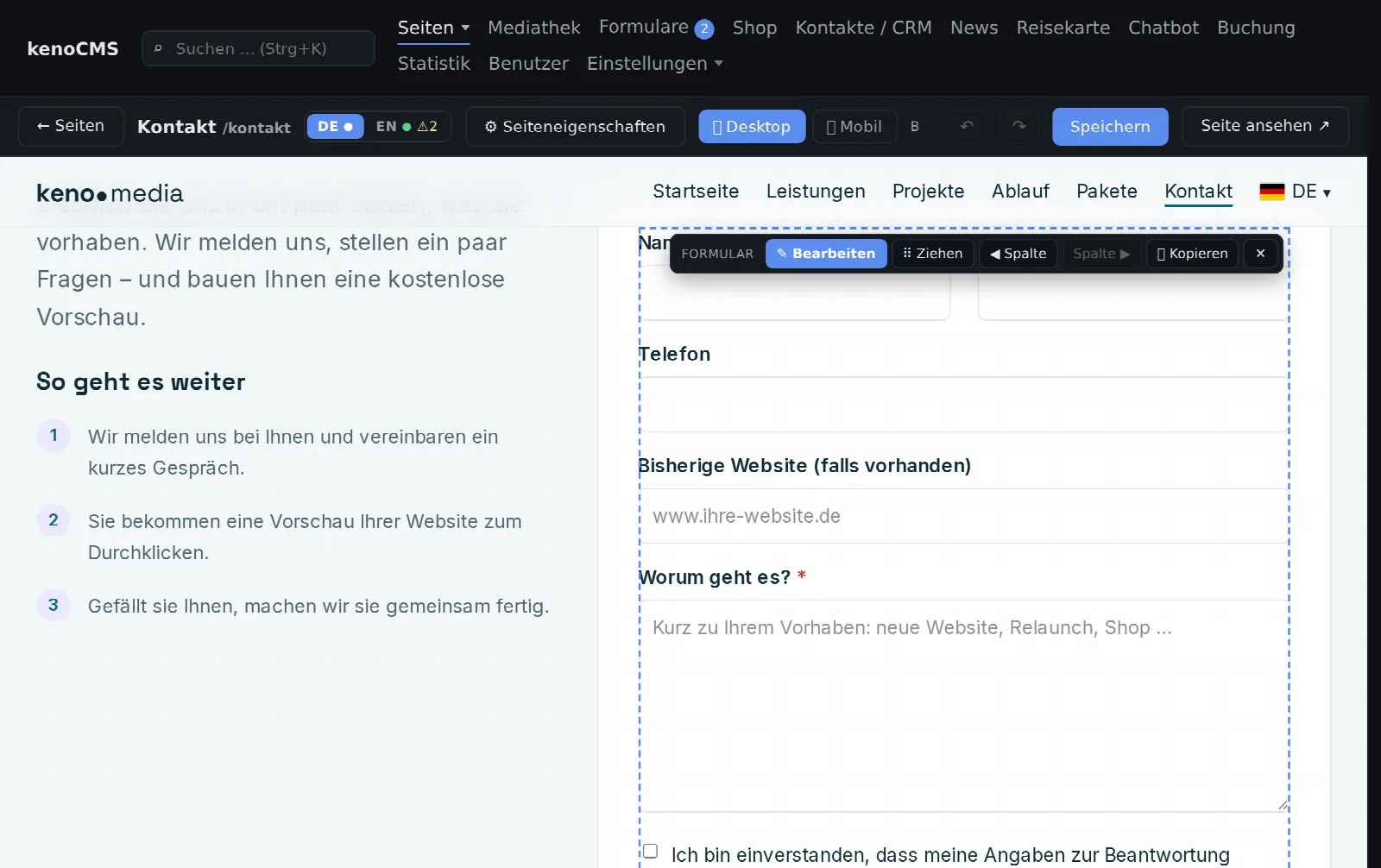
Open the page in the editor, e.g. "Contact". Click on the form in the preview and then on Edit. If there isn't one yet, insert a new Form block.
Step 4
Choose an inbox and assemble fields
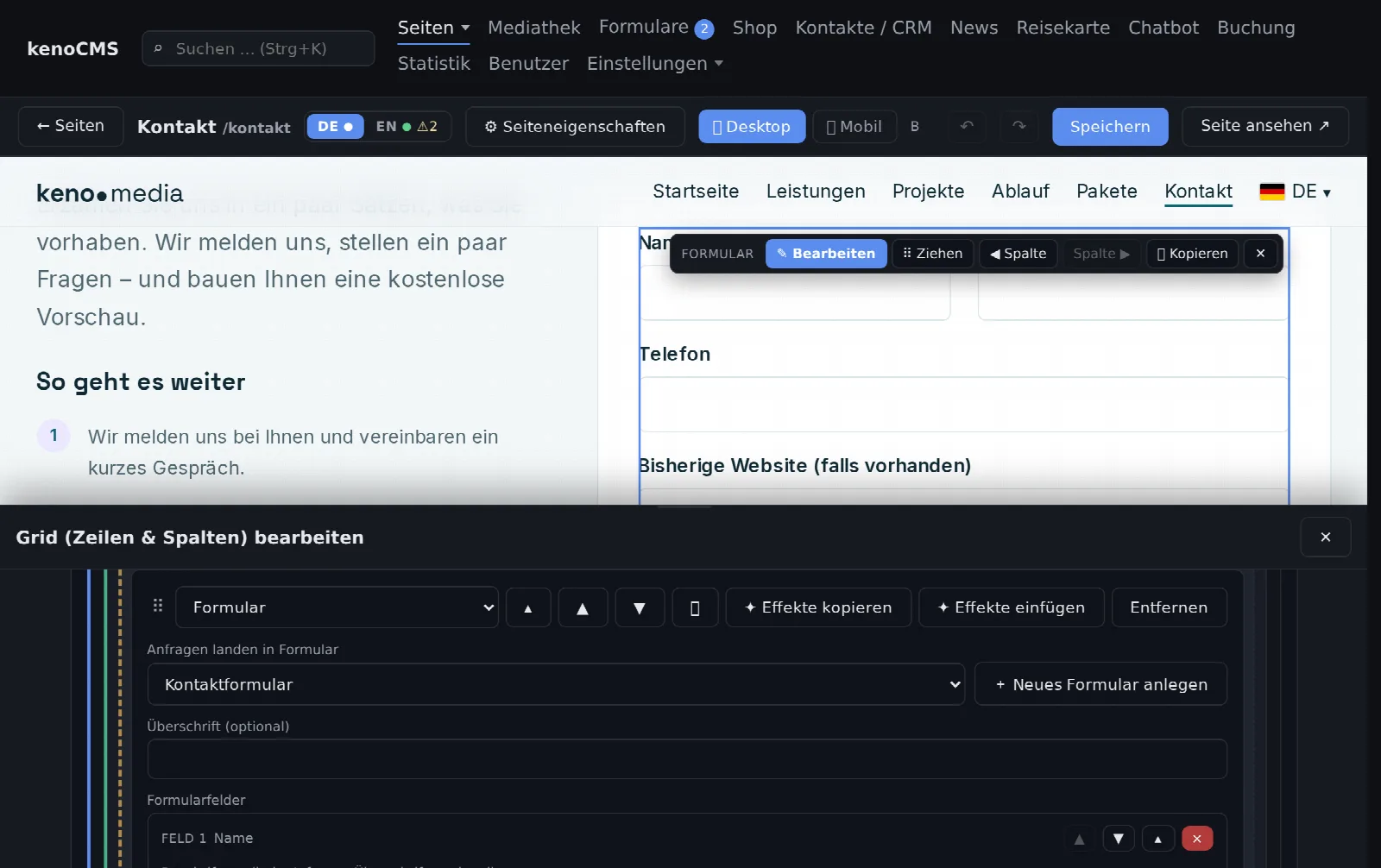
Under Inquiries go to form, select the form from step 1. You can also do this directly here using + Create new form. Below that, you assemble the fields:
- Input field single-line (name) or multi-line (message)
- Email field and Phone field: opens the appropriate keyboard on mobile devices
- Dropdown list: enter options one below the other, one per line
- Checkbox, e.g. for data processing consent
- Info text without input, e.g. a note between fields
Each field can be required and have a placeholder. Use Columns to place fields side by side, e.g. name and email. Use Show only if… to make a field appear only when another field has a specific value. Customize the button text and thank-you text after submission at the bottom. Then click Save.
Step 5
Read and process inquiries
New inquiries are indicated by a number next to Forms in the menu. This is where you open each inquiry, mark it as read, forward it to another address, or delete it. You can process multiple inquiries at once using the checkboxes.
Anything that looks like advertising automatically ends up in the Spam folder and is not forwarded. If it turns out to be a genuine inquiry, click Not spam. Conversely, move an inquiry there using Spam.
Good to know
Spam protection and data privacy
- Spam protection without captcha: invisible honeypot field, minimum filling time, limit per sender, and detection of advertising text
- kenoCMS sends emails via Settings → Email Delivery. You can also send a test email there
- A consent checkbox as a required field is recommended for contact forms
- kenoCMS generates the "Contact Form" section in the privacy policy under Settings → Legal Texts
- Inquiries are personal data. Delete what you no longer need, or have it cleaned up automatically after a certain period