
Guide for Beginners
Create travel map
Your trip as a route on a map, with photos and short texts for each station. Completely without prior knowledge, in eight steps.
The Goal
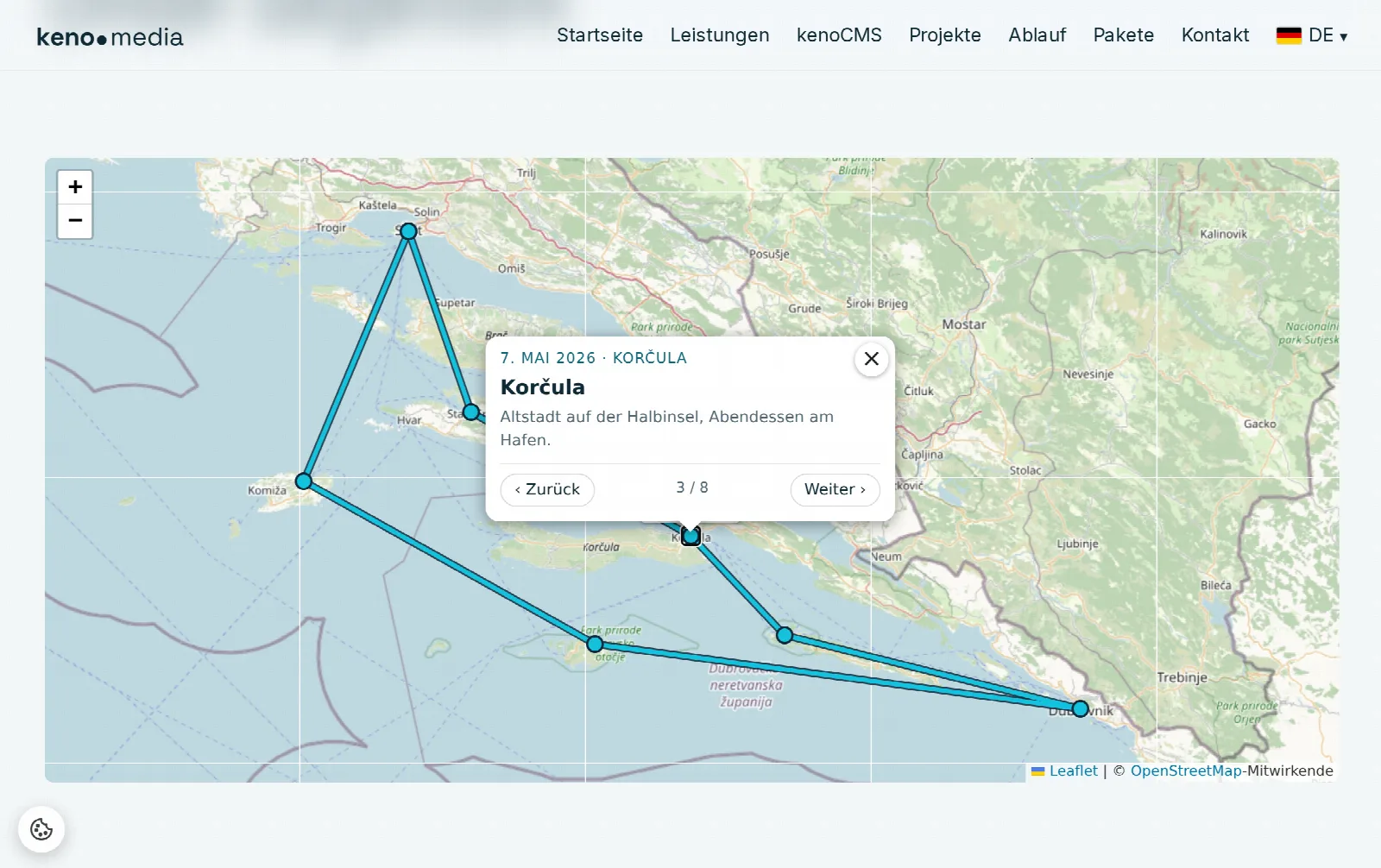
This is what it looks like in the end
A map with your route appears on your website. Each point is a station of your trip. Anyone who clicks on it sees the date, location, a photo and your text, and can jump to the next station with Next.
- Point or Station: a location of your trip, e.g. a port or a city
- Route: the line connecting all points in chronological order
- Type: how you traveled, e.g. by ship or overland. Each type has its own color
Step 1
Activate travel map
Log in to the admin area. If Travel map is already in the menu above, everything is ready and you can proceed to step 2.
If the menu item is missing, open Settings → Modules and click Turn on next to "Travel map". The travel map is free of charge.
Step 2
Open the travel map
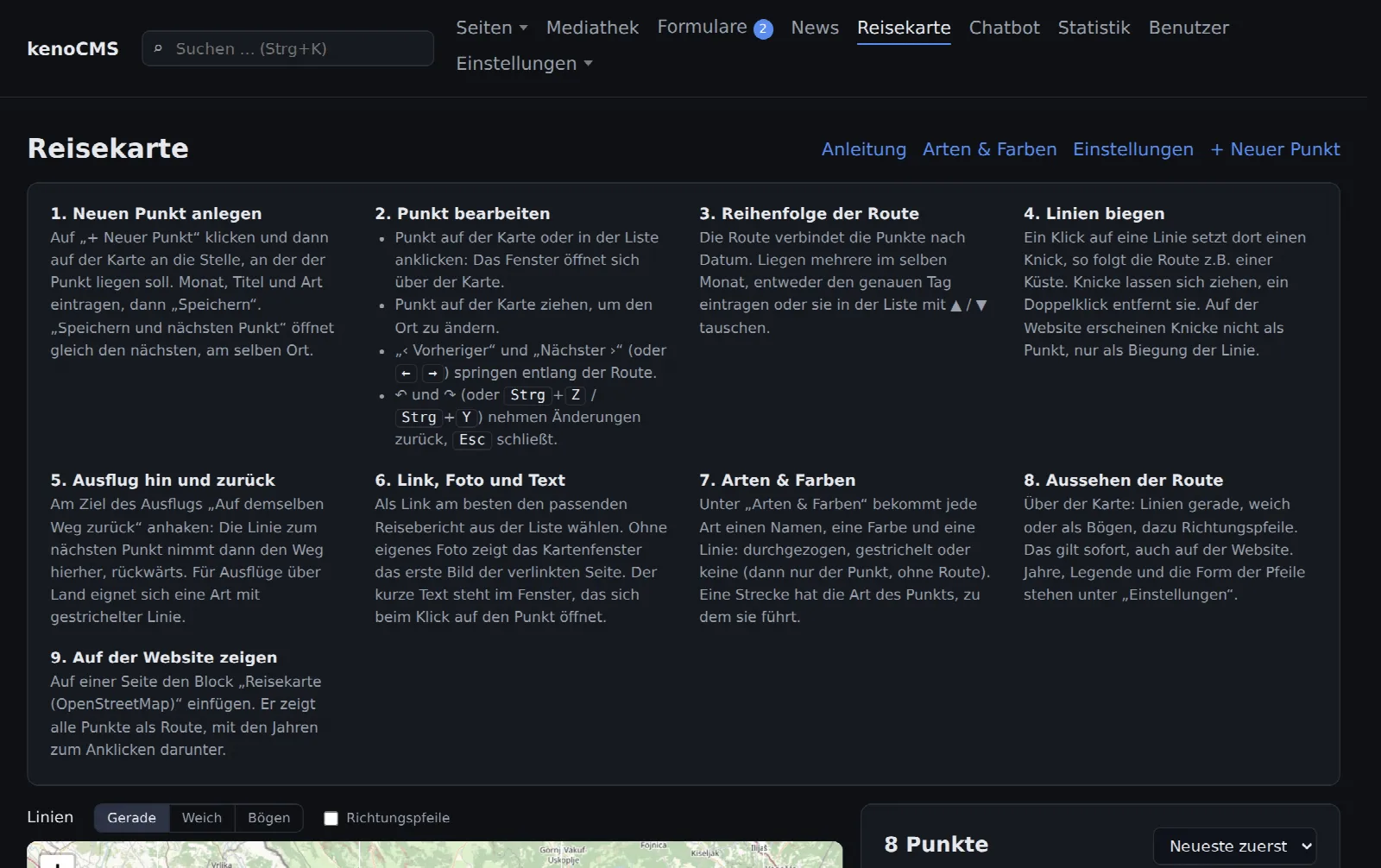
Click on Travel map in the top menu. On the left you will see the large map, on the right the list of all points. At the beginning, both are still empty.
At the top right you will find the Guide link. Clicking on it displays a short version of this guide directly in the admin area, and a second click hides it again.
Step 3
Create the first point
Click on + New point at the top right. Then click on the map exactly where your station is located. Use the mouse wheel or the + and − buttons to zoom in closer, and drag the map with the mouse button held down.
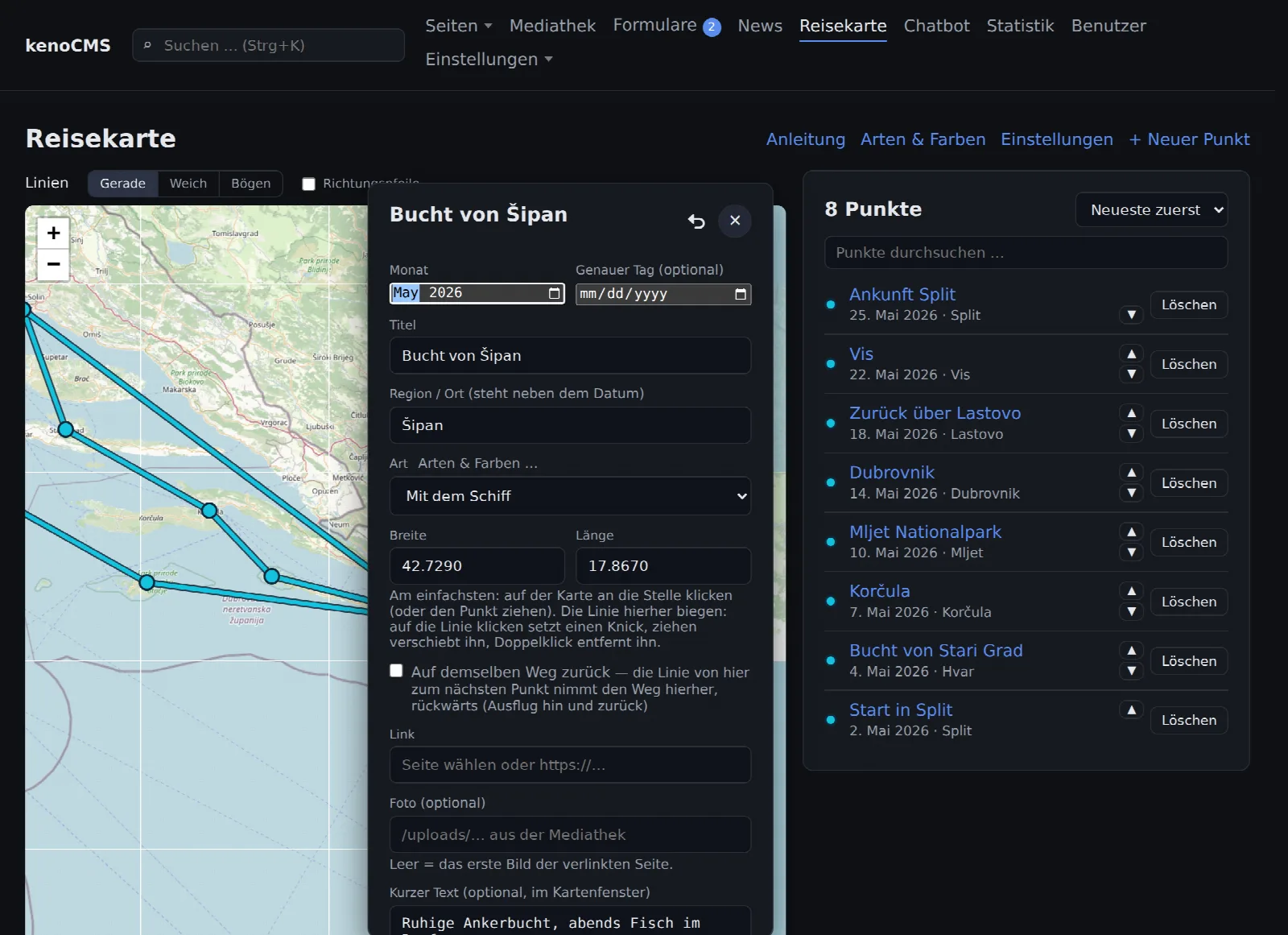
A window opens above the map. Latitude and longitude are already filled in because that is the spot you clicked. If the point is not quite right, simply drag it to the correct location with the mouse.
Step 4
Fill out the window
- Month (required): when you were there. You can additionally enter the exact day, but it is optional.
- Title (required): short and clear, e.g. "Arrival in Split" or "Bay of Šipan".
- Region / Location: appears on the website next to the date.
- Type: how you got there, e.g. "By ship".
- Link: If you wrote a report about this station, select it here from the list. Then the map will lead directly there.
- Photo: an image from the media library. If the field remains empty, the map takes the first image of the linked report.
- Short text: one or two sentences that appear when you click on the point.
Finally, click Save. Use Save and next point to continue directly with the next station.
Step 5
More points, order and editing
Create all stations this way. The route connects the points automatically according to the date, the order in which you create them does not matter. If you were in several places in the same month, enter the exact day or swap the points in the list using ▲ and ▼.
- Edit: Click on the point on the map or in the list, the window opens again.
- Move: Drag the point on the map with the mouse.
- Delete: Click "Delete" in the list on the right.
- Made a mistake? The ↶ arrow at the top of the window undoes the last change, Esc closes the window.
Step 6
Bending lines
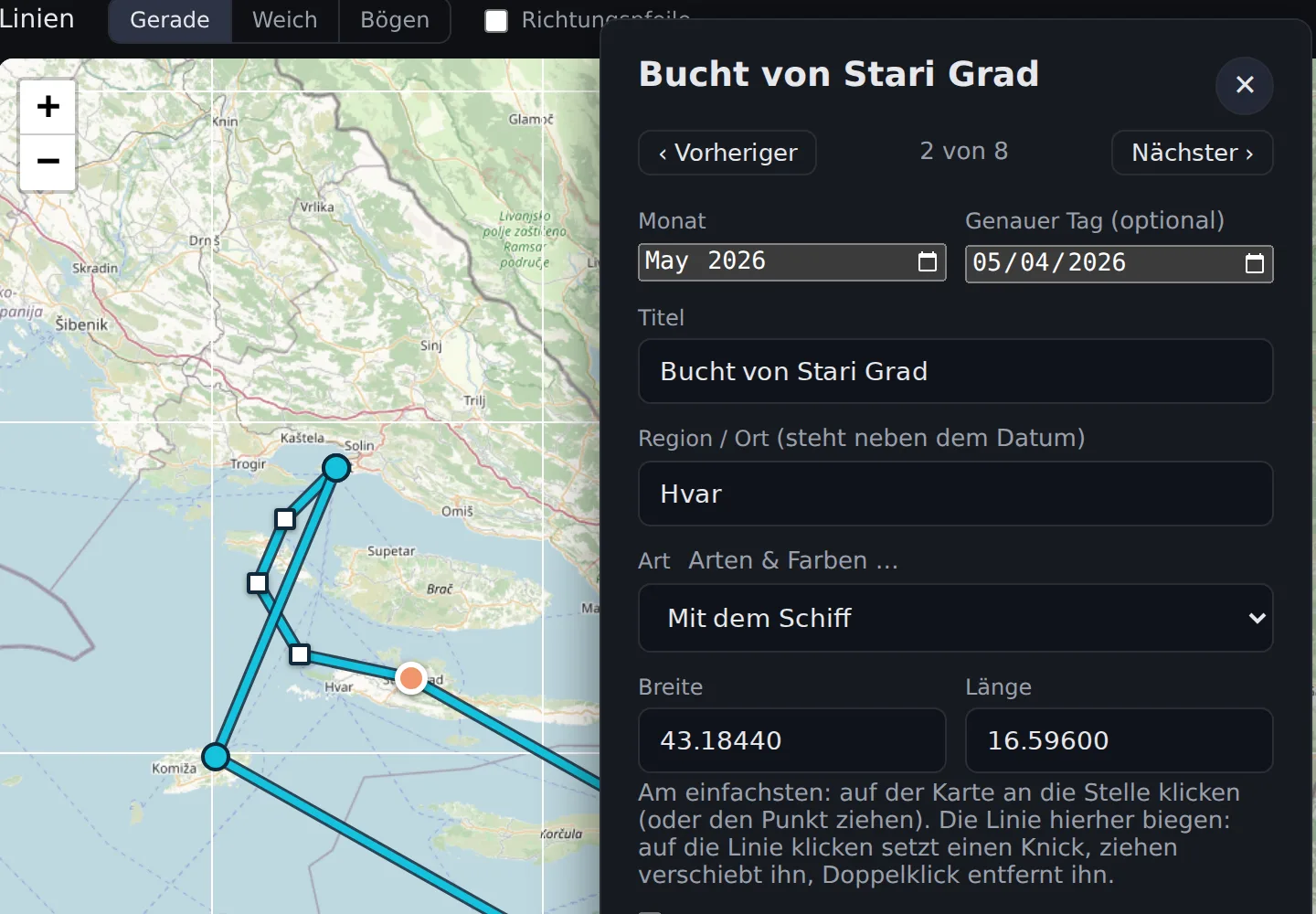
The route initially connects two points with a straight line. If your path in reality goes around an island or a headland, bend the line so that it follows the coast.
- Click on the point in the list or on the map to which the line leads. The map will jump to that area.
- Click on the line at the point where it should turn. A small white square, a bend point, will appear there.
- Drag the bend point with the mouse to where the line should run. For a wide curve, simply set multiple bend points one after the other.
- A double click on a bend point removes it again. Finally, click on Save.
On the website, the bend points are invisible, and only the curved line is visible. You can adjust how round the line looks above the map under Lines: Straight (angular at the bend points), Smooth (a round curve through the bend points) or Arcs (even sections without a bend point as a gentle arc).
Step 7
Types and colors (optional)
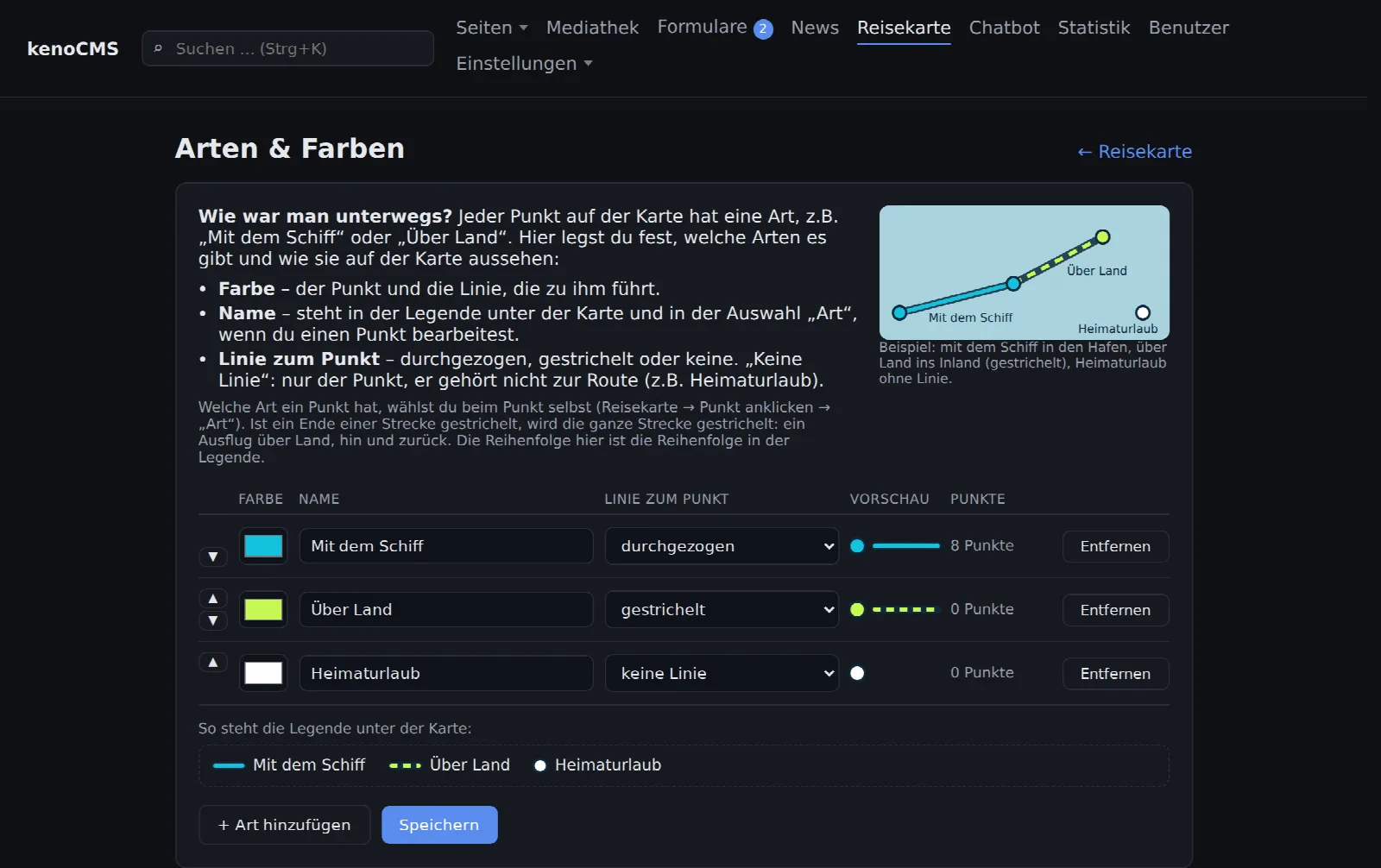
Under Types & Colors (top right) you define how the lines look: name, color and whether the line is drawn solid, dashed or not at all. The defaults are "By ship", "Overland" and "Home vacation". You can rename them or add your own, e.g. "By bike".
Step 8
Show the map on the website
Under Pages, open the page where the map should appear, e.g. "Our Journey". Insert the Travel map (OpenStreetMap) element there and click Save. That is all.
The map always shows all points. New points therefore appear automatically, and you do not need to edit the page again for this. How to insert a content element is also explained in the Editing pages guide.
Good to know
Helpful for the beginning
- Upload the photos under Media library first, then you will find them immediately when creating a point
- The map is provided by OpenStreetMap, not Google
- Under Settings of the travel map you configure years, legend and directional arrows
- You cannot break anything: every point can be edited or deleted at any time