
Instructions
Edit page
Change text, swap images, add a section: this is how the kenoCMS editor works.
Step 1
Open page
Log in at ihre-domain.de/admin. Under Pages you will see all the pages of your website. Click on the name of the page you want to edit. The editor displays the page just as visitors see it.
If you are logged in and browsing your website, you can also access the page editor directly via the pencil icon.
Step 2
Click and edit section
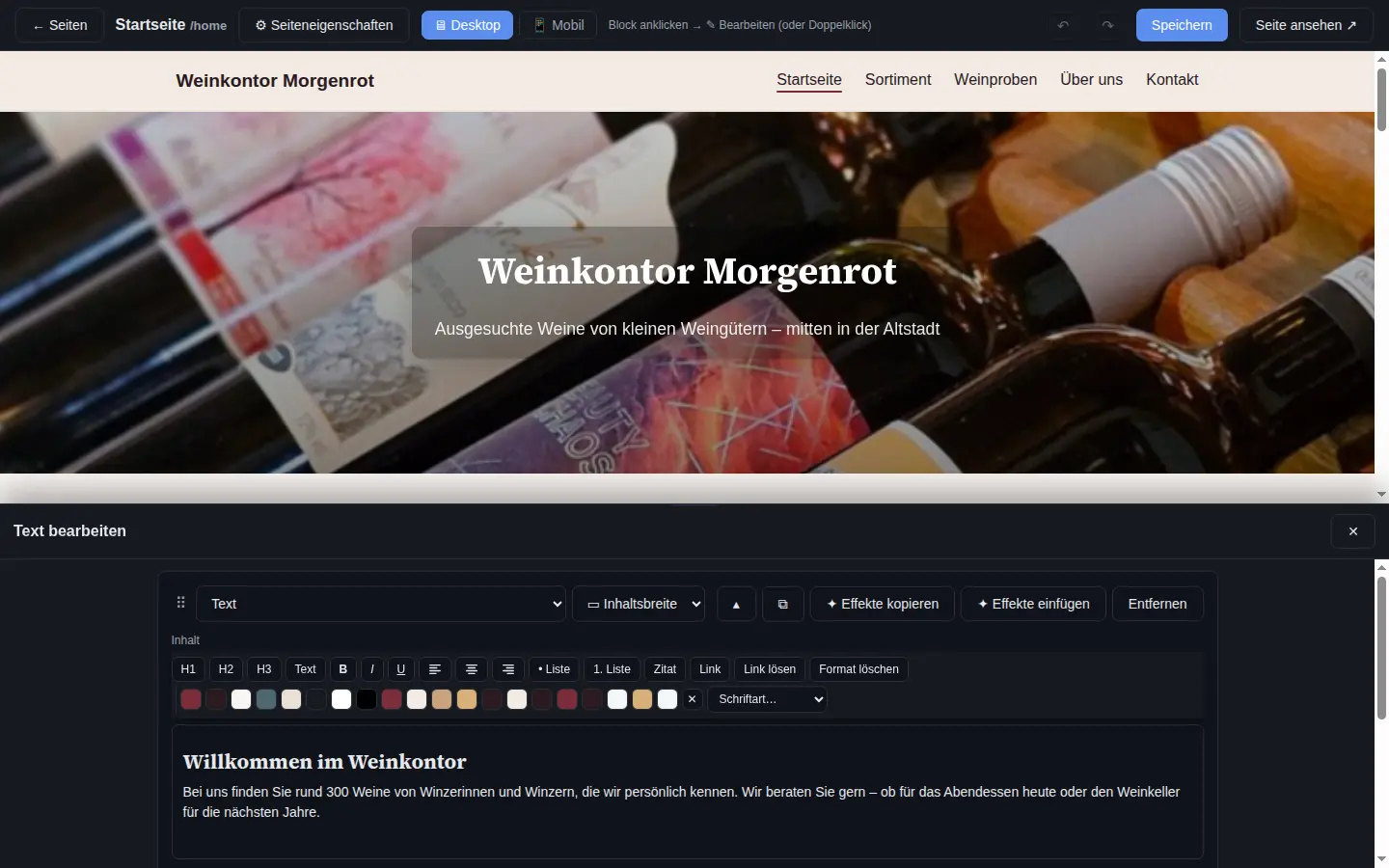
Click on the section you want to change in the preview. You can edit texts directly in place. The toolbar above offers headings, bold, italic, lists, links and alignment.
For all settings of a section, click Edit in its toolbar: images from the media library, spacing, background, animation. Use Drag to move a section, and Copy to duplicate it.
Step 3
Check on mobile
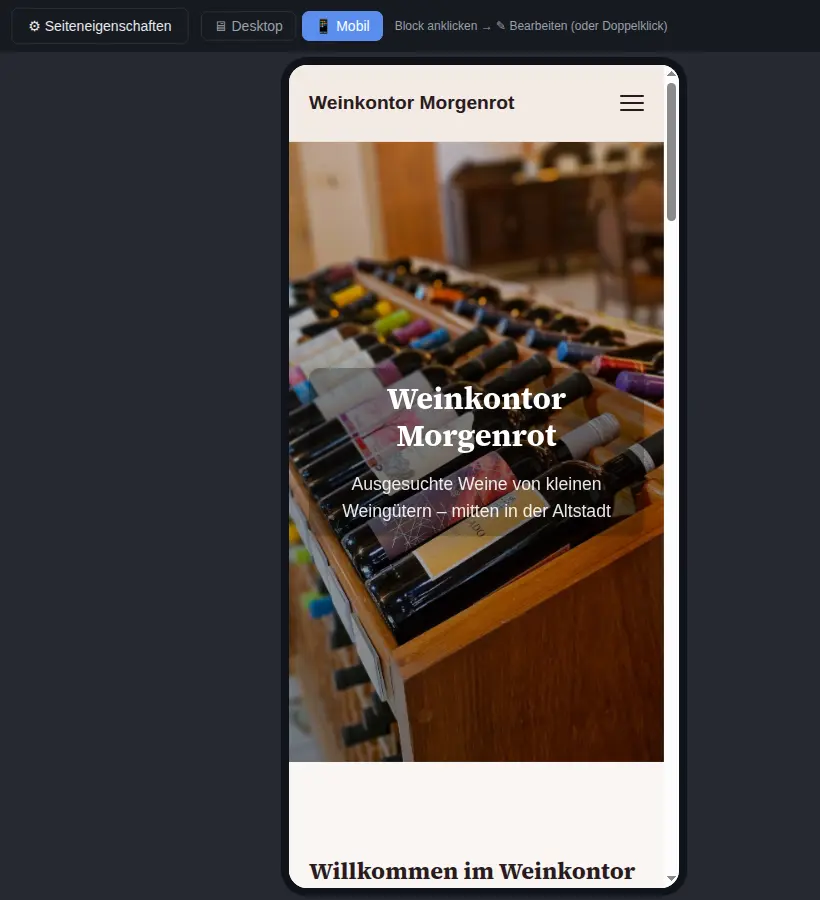
At the top of the editor, switch between Desktop and Mobile. This lets you see immediately how the page looks on a smartphone. Some settings, such as spacing or heights, can be configured separately for mobile.
Step 4
Save and publish
Click Save. Only then will visitors see the change. Made a mistake? As long as you have not saved, you can use the arrows ↶ ↷ to go back step by step. After saving, the history helps.
You create a new page under Pages with a title and + Create page. At first, it is a draft. Under Page settings, you set it to "Published" and determine whether it appears in the menu.